How to convert a photo to a 3D model using AI
A practical guide to turning a photograph into a textured, game-ready 3D model in a few minutes — no 3D modeling experience required.
Wandy3D teamUpdated 6 min read
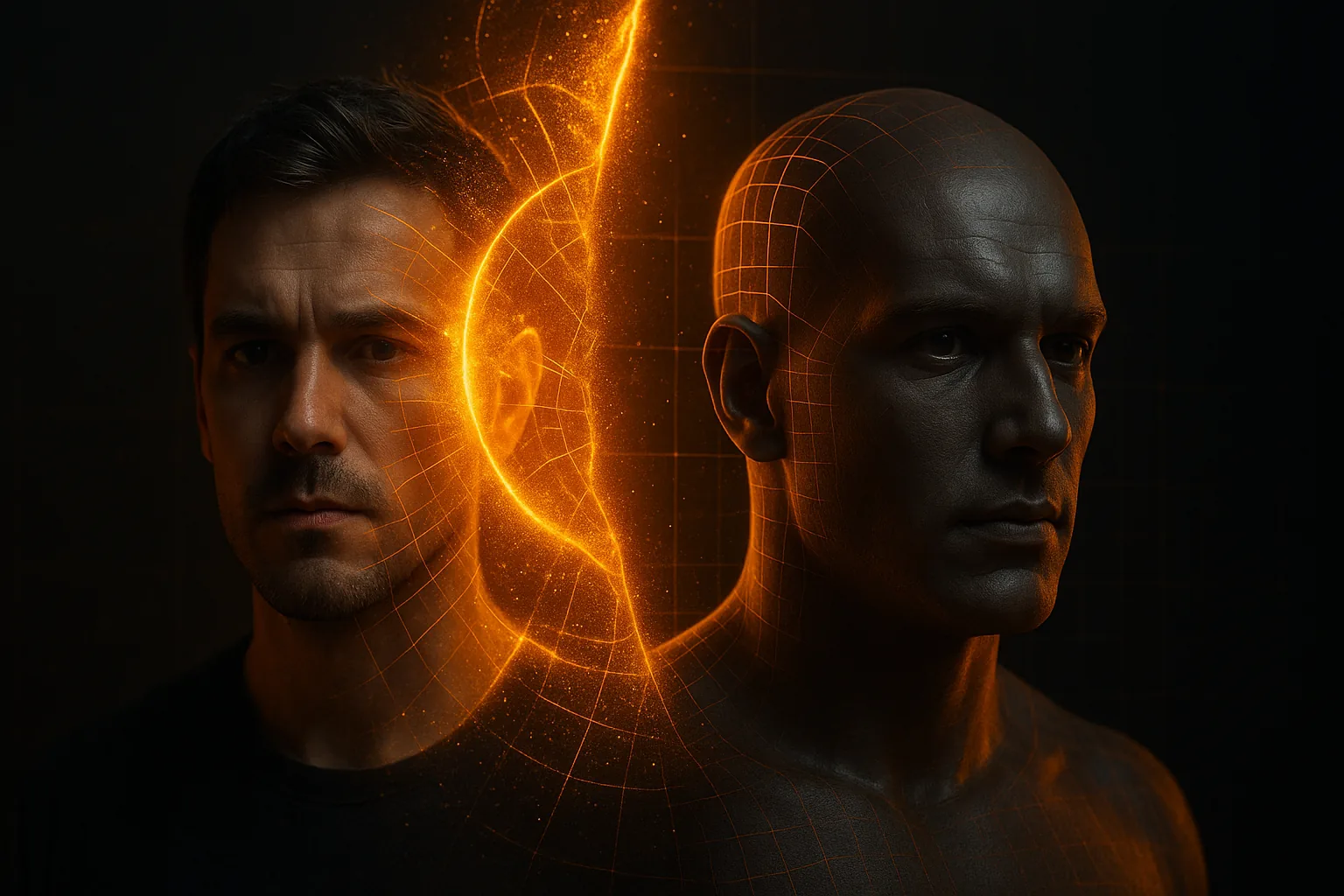
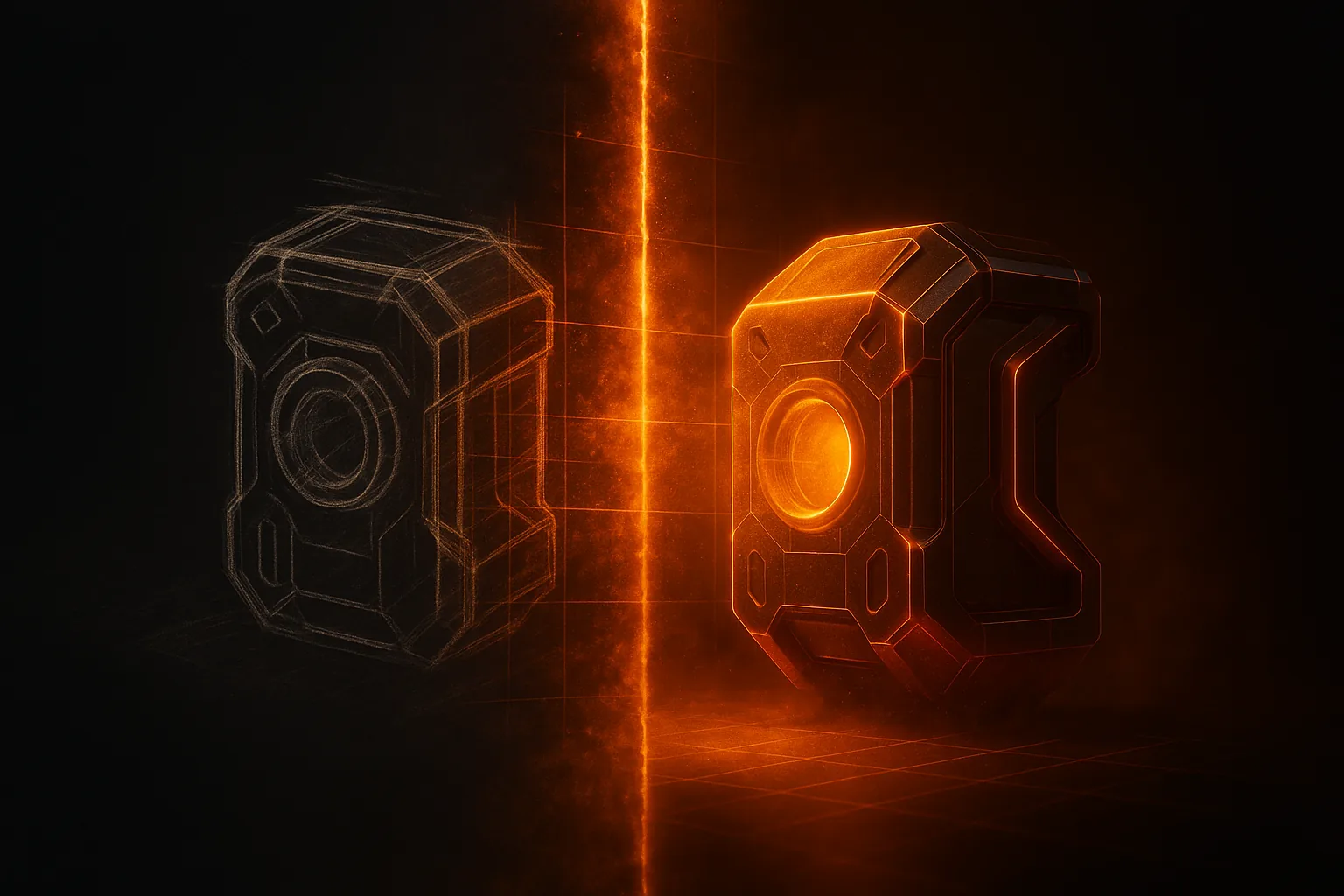
A few years ago, turning a photo into a 3D model meant hours of work in Blender or Maya. You'd need to know topology, UV unwrapping, texturing — the whole pipeline. Today, AI does it in a few minutes.
This isn't some distant promise. The technology is here, it works, and it's accessible to anyone with a browser.
What “photo to 3D” actually means
When we talk about converting a photo to a 3D model, we mean taking a single 2D image and generating a full three-dimensional mesh with textures. The AI looks at your photo, understands the shape of the object, and reconstructs what it would look like from every angle — including the parts you can't see in the original image.
The output is typically a GLB file (the binary version of glTF). You can drop it straight into Unity, Unreal Engine, Blender, Three.js, or pretty much any modern 3D application.
Step by step: your first 3D model
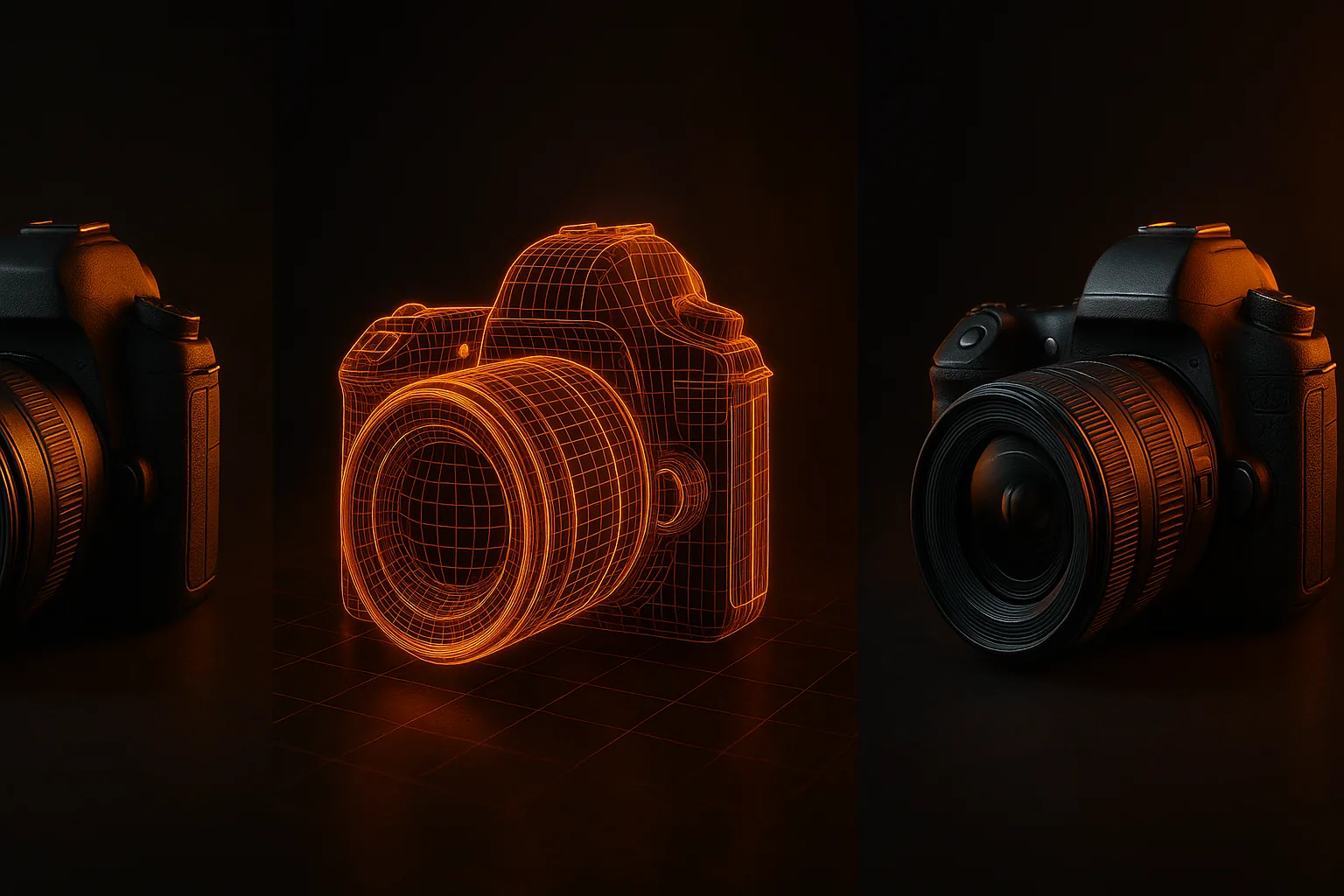
1. Choose your photo
- Clear subject — the object should be the main focus
- Good lighting — even, natural light works best
- Decent resolution — 720p minimum, a phone camera is enough
- Object fills the frame — crop tight around the subject
2. Upload and pick a mode
On Wandy3D's generator, upload your image and pick a mode — Fast, Quality or Best. The price in credits is on the button before you start.
3. Wait a few minutes
The AI cleans up the photo, then builds the mesh and textures on cloud GPUs. You can follow the progress live, and if a run fails, the credits come back automatically.
4. Download and use it
Your model is a GLB with PBR textures baked in — albedo, normal, roughness and metallic — and it can also be downloaded as FBX, OBJ, USDZ or STL (downloads come with PRO). Import it into your engine or 3D app and it’s ready to render.
Tips for better results
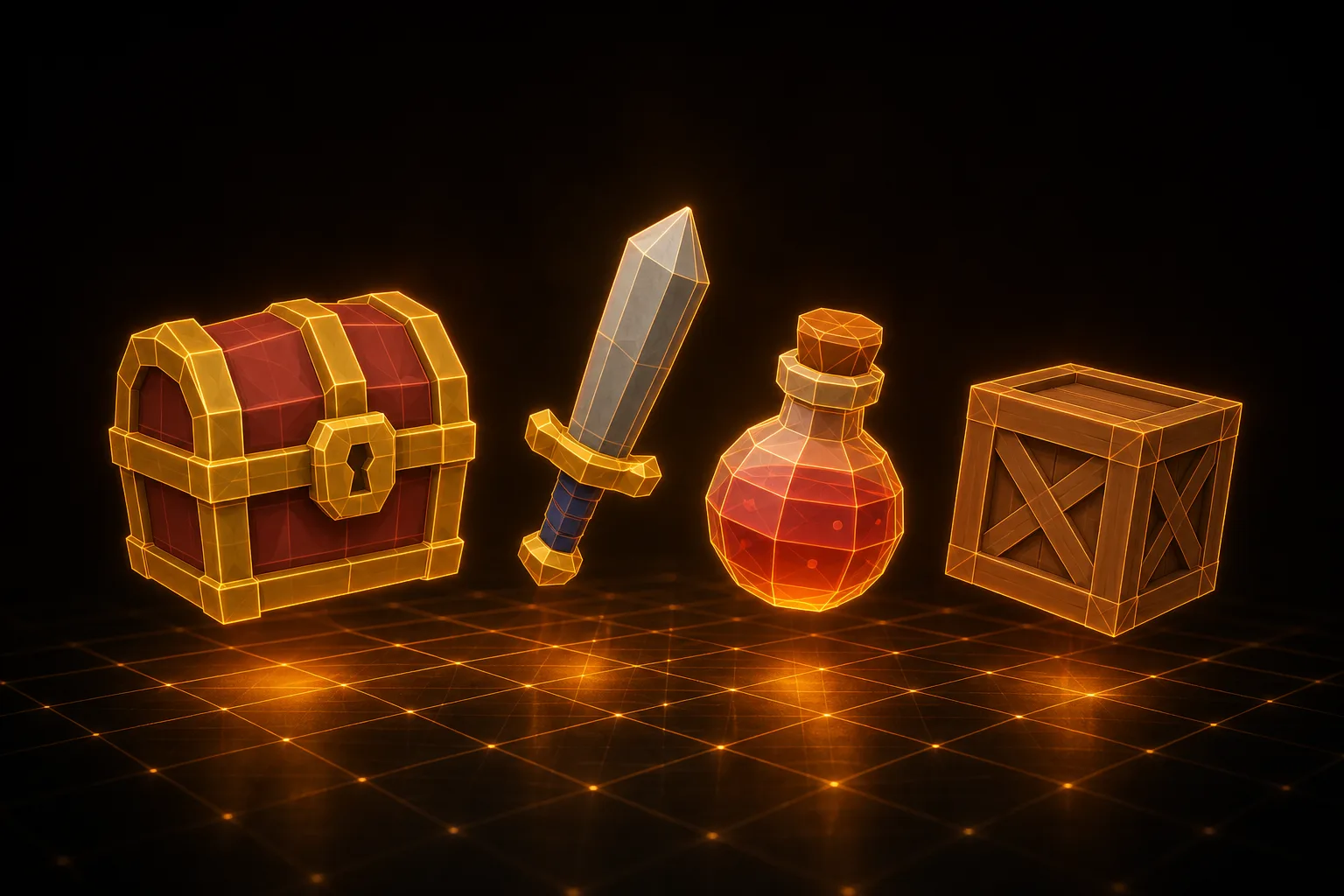
Hard-surface objects — furniture, gadgets, props, figurines — work best: clear silhouettes and solid materials come out cleanly.
Organic and delicate shapes — hair, fur, thin leaves, glass — are harder. A second or third photo from another side helps, and the technology improves every month.
The bottom line
AI 3D generation has crossed the threshold from "cool demo" to "actually useful tool." For many uses — especially game development and visualization — the result works as is or after light cleanup.
If you’ve never tried it, start with free credits: upload a photo and see what comes out.