Game-ready 3D models for Unity with AI: from photo to prefab
A hands-on guide to making textured 3D models for Unity from a photo or a sentence — triangle budgets, FBX vs GLB, materials, colliders and LODs.
Wandy3D teamUpdated 7 min read

Every Unity project hits the same wall sooner or later: you need props — crates, lamps, furniture, gadgets, statues — and the asset store rarely has exactly the one you want. Modeling each by hand takes days.
AI generation closes that gap. From one photo or a short description you get a textured 3D model in a few minutes, and with a few settings it drops into Unity as a clean, game-ready prefab.
What “game-ready” means in Unity
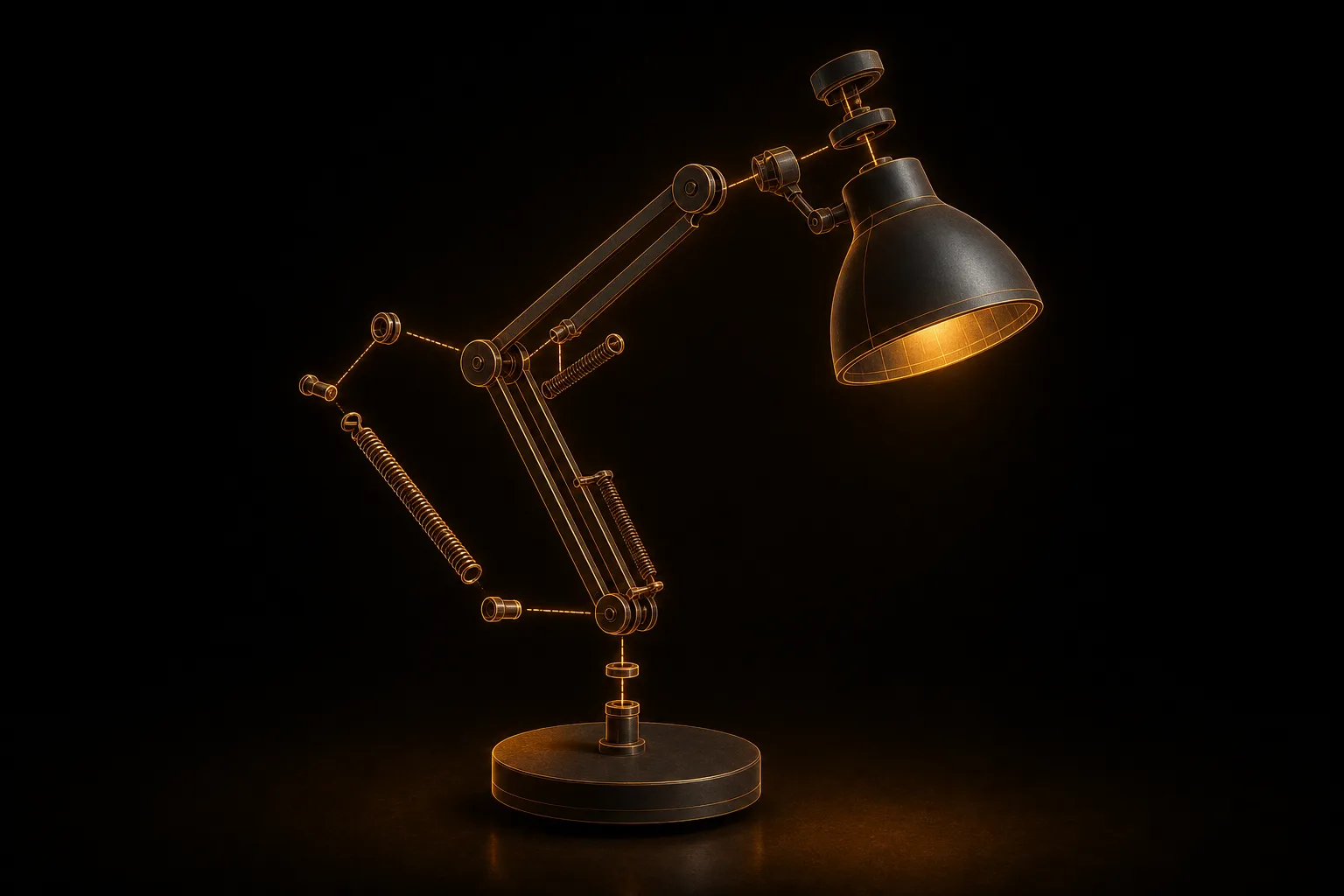
A model is game-ready when it has a triangle count that suits its role, PBR textures, real-world scale (in Unity one unit is one meter), a pivot you can work with and a collider. AI generation gives you the shape and the textures; the steps below cover the rest.
Step 1: a good photo — or a sentence
- Three-quarter angle — shoot slightly from above and to the side, so the front and one side are visible.
- Even light, simple background — the background is removed automatically, but hard shadows and clutter still confuse the shape.
- The whole object in frame — whatever is cropped out becomes a guess.
No photo? Describe the object with Text to 3D: Wandy3D draws the views first, then builds the model.
Step 2: generate the model
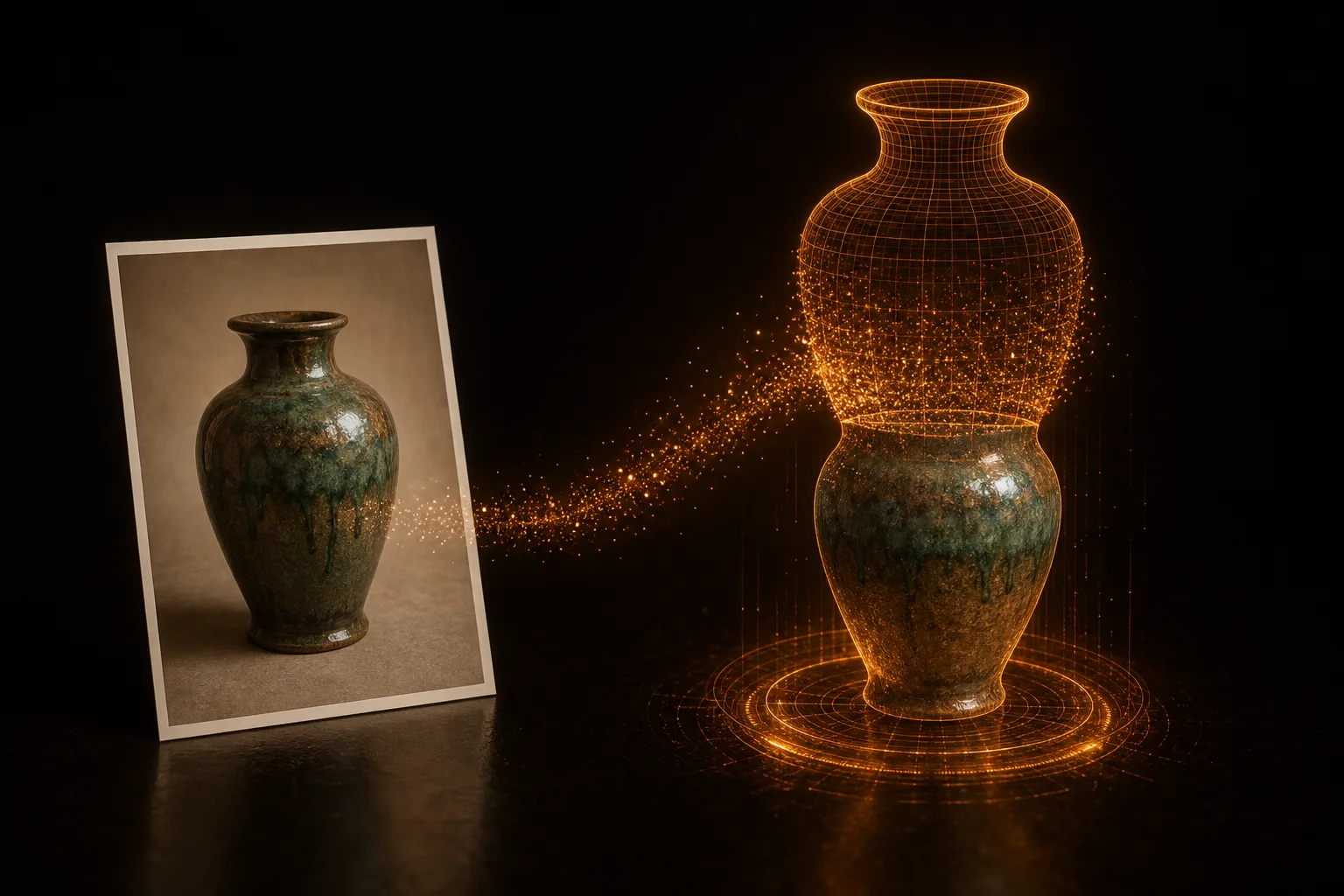
Upload the photo on Wandy3D and pick a mode: Fast for blocking out, Quality for most props, Best for hero objects. A textured model is usually ready in a few minutes and lands in your library, together with every later version.
Step 3: set the triangle budget
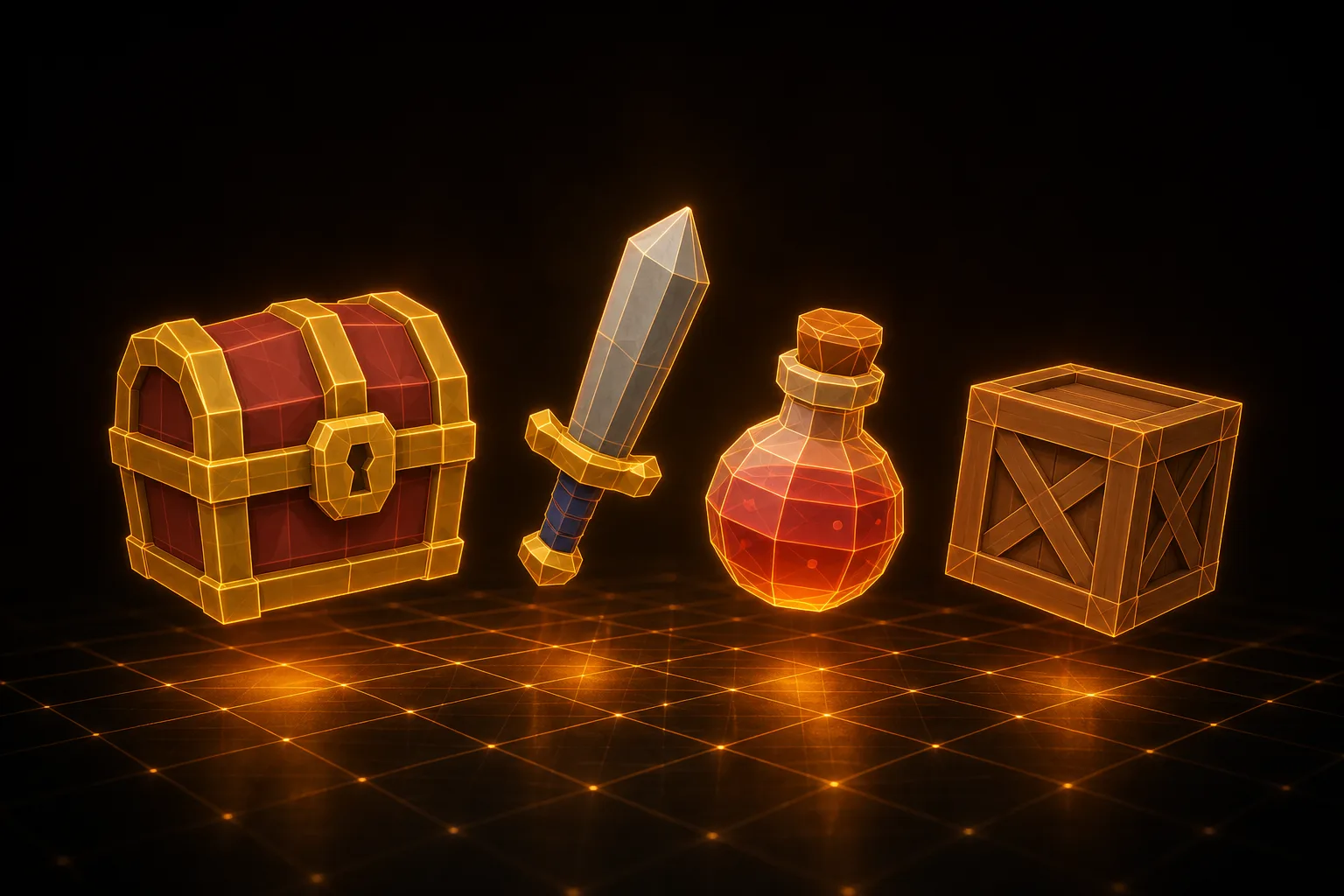
Raw AI meshes are dense. Remesh rebuilds the model as clean quads at the face count you choose:
- 2,000–5,000 faces — small props and background objects
- 10,000 faces — mid-sized props the player sees up close
- 20,000–50,000 faces — hero objects and close-up shots
Remesh bakes the textures onto the new mesh (1024, 2048 or 4096 px). Each remesh is kept as a new version of the model, so you can have several densities of the same object — handy for LODs later.
Step 4: FBX or GLB
- FBX — Unity imports it natively: drag the file into your Assets folder. The texture is embedded; if the material comes in plain, open the model’s Import Settings → Materials and click Extract Textures.
- GLB — carries the full PBR set (base color, metal/roughness and normal). Unity needs the free glTFast package (Package Manager → Add package by name →
com.unity.cloud.gltfast), which sets the materials up for URP, HDRP or the built-in pipeline.
Downloads are part of the PRO plans. For a deeper comparison, see GLB, FBX, OBJ, USDZ or STL: which format to export.
Step 5: turn it into a prefab
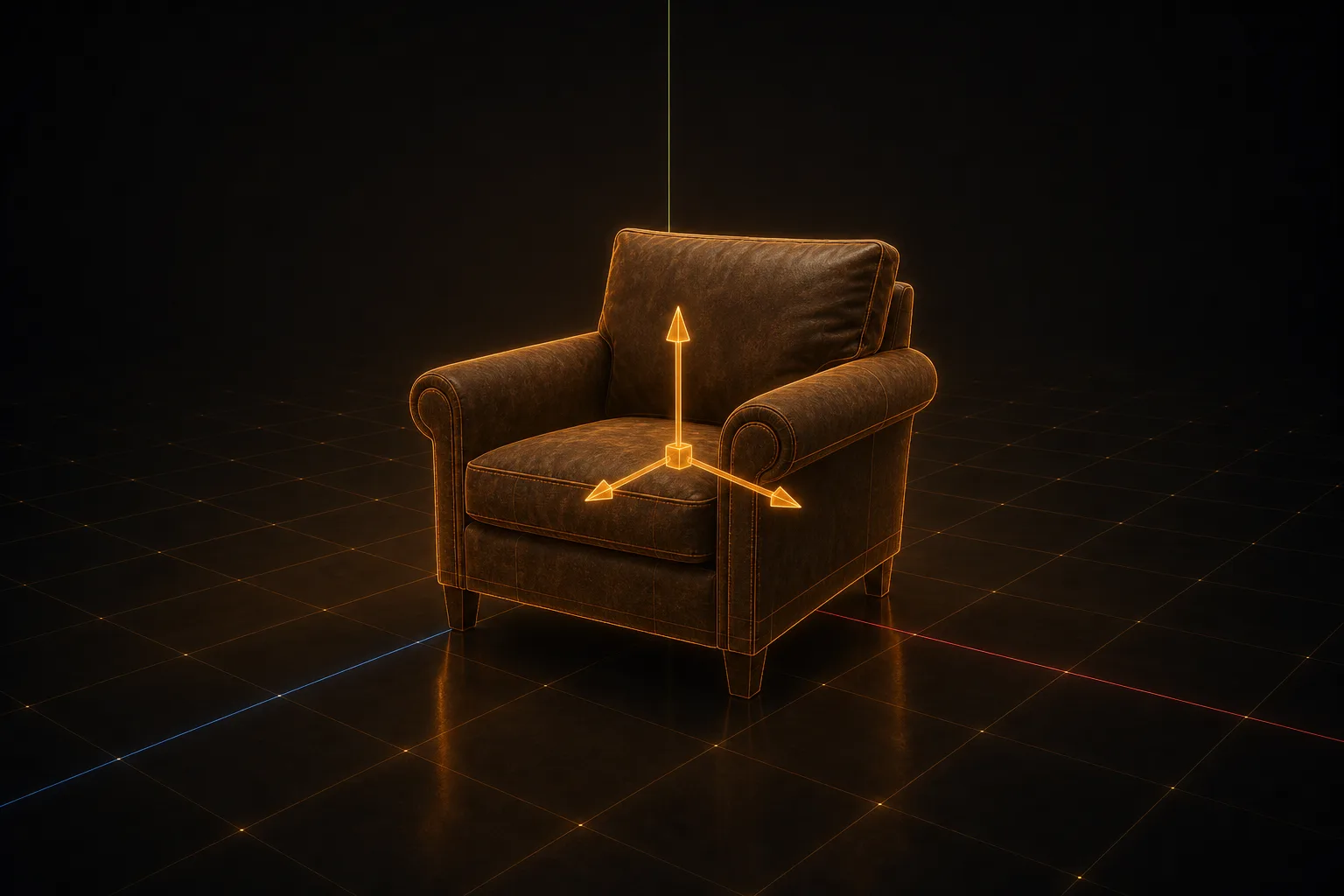
- Check the scale. Drop a default cube (1 m) next to the model. If the sizes don’t match reality, change the Scale Factor in the import settings rather than scaling the object.
- Fix the pivot. Create an empty GameObject at the base of the model and make the mesh its child — now it sits on the floor and rotates around its center.
- Add a collider. Box or Capsule for simple shapes, a convex Mesh Collider for irregular ones. A light remesh version (2,000 faces) makes a good collision mesh.
- Check the material. In URP Lit, metal/roughness becomes Metallic and Smoothness — smoothness is inverted roughness, and glTFast converts it for you.
- Save a prefab by dragging the root object into the Project window.
LODs almost for free
Because every remesh is kept as a version, a LOD Group is quick: LOD0 at 20,000 faces, LOD1 at 5,000, LOD2 at 2,000. Export each version, put them under one parent and assign them in the LOD Group — Unity switches between them by screen size.
Where this fits
Photo to Unity prefab now takes minutes instead of days — enough to fill a level with unique props while you spend your time on gameplay. The same workflow for Unreal is in AI 3D models in Unreal Engine 5; for tight budgets, see optimizing 3D models for mobile games. Ready to try? Make a model from your own photo — new accounts get free credits to start.